

How to migrate WordPress to Payload CMS: a practical guide
Payload gives developers a content model defined in code, a clean API and full control of the front end. Getting years of WordPress content into it is a separate job from building the new site. This guide walks through that job: what to take stock of, how to shape Payload first, and where WordPress content needs the most care.
1. Take stock of what WordPress holds
Before moving anything, list what the site actually contains. A WordPress site that looks like "a blog with a few pages" often holds much more:
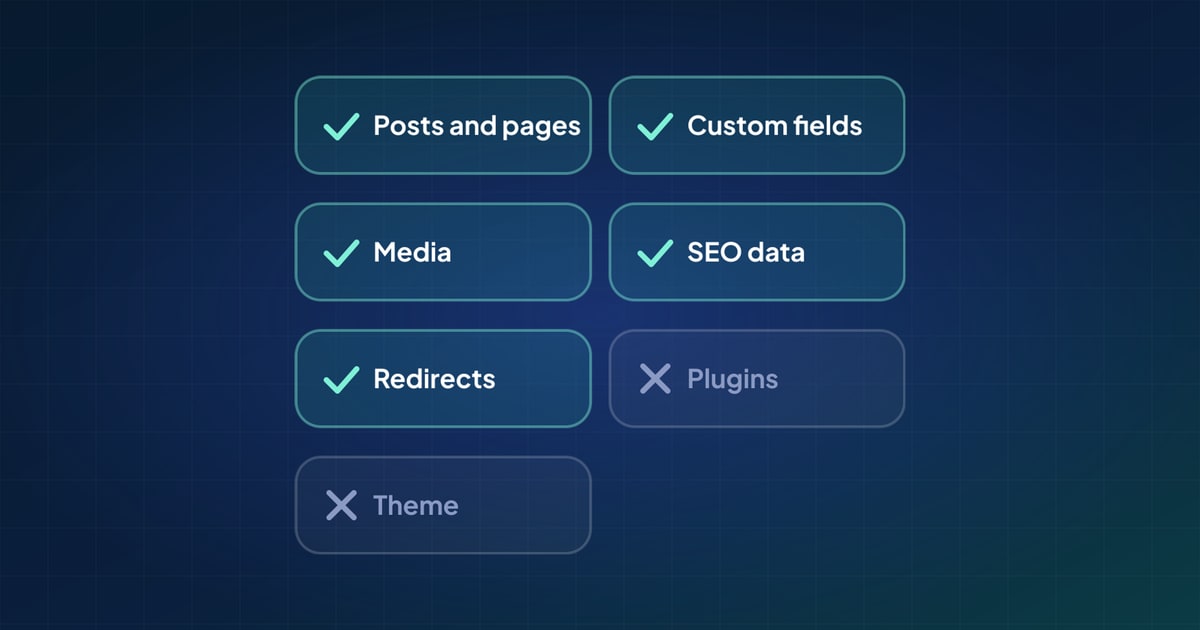
- Posts and pages, in every status: published, drafts, scheduled and private.
- Custom post types registered by the theme or plugins, such as events, case studies or products.
- Categories, tags and custom taxonomies, including category parents.
- Custom fields: from Advanced Custom Fields, from other plugins, or plain post meta that nothing registers.
- Media: featured images, images in post content, PDFs and other files, with their alt text.
- Authors, and sometimes subscribers or members.
- Menus, comments, and the site's own settings (title, tagline, logo).
- SEO data kept by Yoast SEO or Rank Math, and redirects kept by a plugin such as Redirection.
Count each type. The numbers tell you how big the job is, and they become the checklist you compare against at the end. Then decide what should not move: old drafts nobody needs, spam comments, test pages. Leaving them out is easier than deleting them later.
2. Getting the content out of WordPress
There are three common routes, and they see different amounts of the site.
The REST API
WordPress has a REST API under /wp-json/wp/v2/ for posts, pages, media, terms and users. With an Application Password (WordPress 5.6 and later) it also returns drafts and private content. Its blind spot is custom fields: the API only returns meta that a plugin or theme registered for it. ACF can expose its fields to the API; unregistered meta stays invisible.
The export file
Tools › Export produces a WXR file (WordPress's XML format). It includes post meta, so it sees custom fields the API cannot, plus terms, authors, comments and menus. It references media by URL rather than including the files, so images still have to be downloaded from the live site.
The database
Reading the database directly sees everything, but you then reimplement what WordPress does for you: serialised meta values, shortcodes, and the relationships between tables. It is usually the last resort, for sites the other two routes cannot cover.
3. Shape the Payload side first
Payload defines its content model in code: collections for repeating content such as posts, and globals for one-off documents such as site settings or a header. Decide that model before importing anything. Moving content into a model you are still changing means moving it twice.
A typical starting point for a WordPress site:
| In WordPress | In Payload |
|---|---|
| Posts, pages | posts and pages collections |
| Custom post types | A collection each |
| Categories, tags, custom taxonomies | A collection each, linked by relationship fields |
| Media library | An upload collection, usually media |
| Authors | users, or a separate authors collection |
| ACF field groups | Fields on the collection: text, number, date, relationship, array, blocks |
| Menus, site settings | Globals, such as header, footer and settings |
A few Payload details worth settling early:
- Slugs. Payload doesn't add a slug field on its own. Give posts and pages one, and keep the WordPress slugs, so addresses can stay the same.
- Drafts. Payload keeps drafts when a collection has versions with drafts switched on. Without it, WordPress drafts arrive as published documents.
- Languages. If the WordPress site is multilingual, set up Payload's localization before importing, and mark which fields are localized.
- SEO fields. Payload's SEO plugin adds a meta title, description and image to a collection, which is where Yoast or Rank Math data belongs.
4. Map every field
With both sides known, write down where each WordPress field goes. Most are obvious: title to title, excerpt to excerpt, publish date to a date field. The decisions are in the rest:
- An ACF repeater becomes a Payload array; a flexible content field becomes blocks.
- A relationship or post object field becomes a Payload relationship to the matching collection.
- Meta that only the old theme used (layout switches, colour choices) usually doesn't need to move at all.
- Two WordPress fields sometimes become one, or one becomes two. Note it, so the result can be checked.
This mapping is the heart of the migration. Write it down even if a script will do the work, because it is also what you check the result against.
5. Convert the body content
WordPress post content is HTML. With the block editor it is HTML with block comments; with the classic editor it may contain shortcodes such as [gallery] or [caption]. Payload stores rich text as structured data: Lexical in Payload 3, and Slate by default in earlier versions.
Converting means more than copying HTML in. Headings, lists, links, quotes and images need to become the editor's own nodes. Shortcodes need to be expanded or replaced, because Payload won't run them. Embeds and galleries need a decision: a block in Payload, or plain content. And images inside the text need to point at the copies in Payload's media collection, not at the old WordPress uploads folder.
6. Move media properly
- Download the original files, not the resized copies WordPress generates. Payload makes its own sizes.
- Upload them to the upload collection, with their alt text and captions.
- Keep a record of old URL to new document, so featured images and body images can be pointed at the copies.
- Don't upload the same file twice. Sites often use one image in many posts.
7. Respect the order of relationships
A post can only point at an author, a category or an image that already exists in Payload. So the order matters: terms and authors first, then media, then posts and pages. Links between posts, such as related posts or a link in the body to another article, need a final pass once every post exists, because the target might be created after the post that links to it.
- Terms and authorsCategories, tags, taxonomies and users
- MediaImages and files, with alt text
- Posts and pagesPointing at the terms, authors and media above
- Links between recordsA final pass, once every record exists
8. Keep addresses and search data
Payload doesn't decide URLs; your front end does. If the WordPress site used addresses like /2024/05/my-post/ and the new site uses /blog/my-post, every old address needs a redirect to the new one. Keep the slugs, list each old address with its new one, and set the redirects up where your traffic arrives: Payload's redirects plugin, your host, or your front end.
Move the SEO title and description you set in Yoast or Rank Math, the canonical address, and noindex settings. They took effort to write and they matter for search.
9. Check the result before you switch
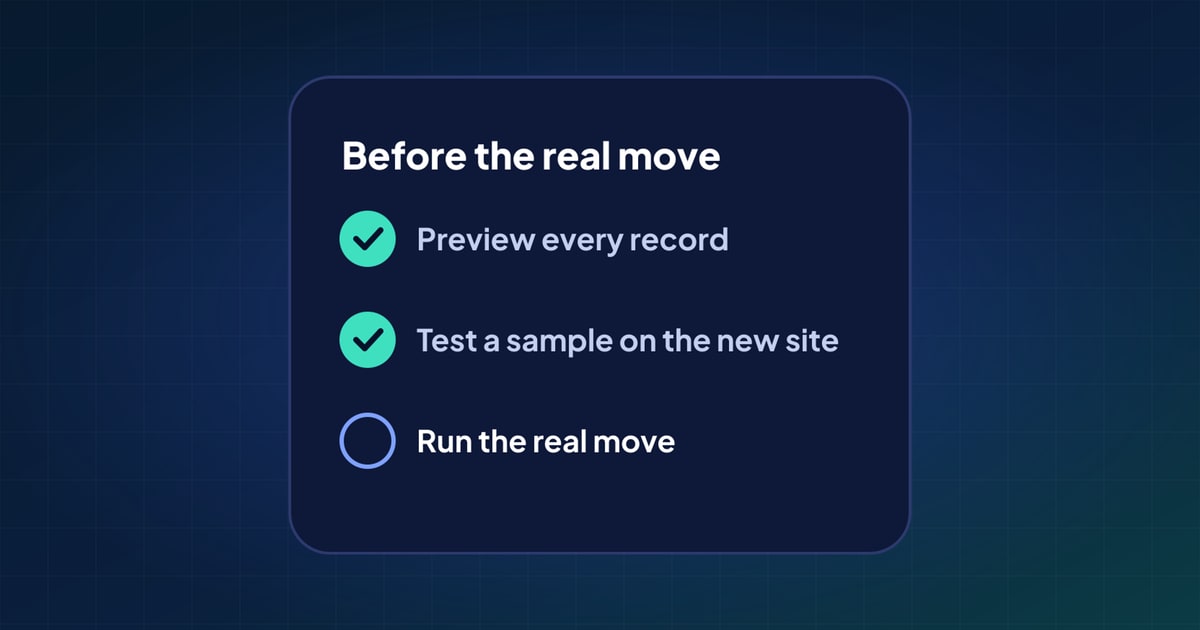
Compare the counts from step 1 with what Payload now holds. Then open a sample of records side by side: a long post, a post with many images, a page with custom fields, something with special characters in its title. Check that links in the body work, that images load from Payload, and that drafts are still drafts. Our guide to testing a migration before you run it goes into this in detail.
Questions
Do I have to rebuild my front end to move from WordPress to Payload?
Usually. Payload is a headless CMS, so a WordPress theme doesn't come with the content. If your site already runs WordPress headless, the front end only needs to read from Payload's API instead. Either way, the content move and the front-end work are separate jobs, and they can happen in parallel.
Can I keep my URLs when I move from WordPress to Payload?
You can keep the slugs, and your front end decides the full address. Where the new addresses differ from the old ones, redirect each old address to its new one.
Do ACF fields move to Payload?
They do when you map them: text and number fields to the same types, repeaters to arrays, flexible content to blocks, and relationship fields to Payload relationships. The REST API only shows ACF fields when ACF exposes them, so the export file is often the better source.
Will my WordPress drafts and scheduled posts move?
They can, if you read them with an Application Password or from the export file, and if the Payload collection has drafts switched on. Otherwise they arrive as published.
 What actually moves in a CMS migration (and what doesn't)
 10 common CMS migration problems, and how to avoid them
 How to test a CMS migration before you run it